HydroCAD Palette
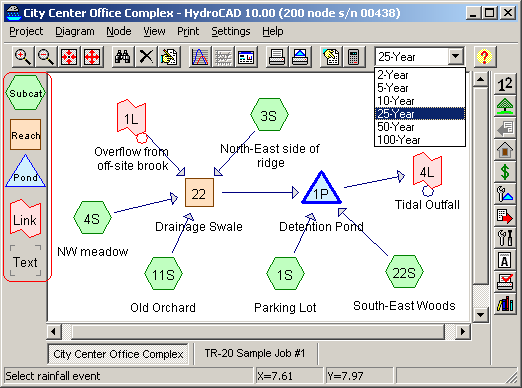 What is the palette?
The palette appears on the left side of the main screen, as indicated at the right. The palette is commonly used to create new nodes in a HydroCAD project.
How do I use the palette?
To create a node, simply drag the desired type of node from the palette to the desired location on the routing diagram.
Can I customize the palette?
By default, the palette will contain all of the available node types, with the nodes being empty. However, you can override this automatic behavior by editing the special project file called "palette.hcp", which is stored in the HydroCAD program folder. If you choose the create your own palette, you should include each of the regular (empty) node types, plus any special pre-configured nodes that you wish to create.
Where is the palette stored?
The "palette.hcp" file is stored in the same folder as the HydroCAD program file, which is generally C:\Program Files\HydroCAD (on 32-bit computers) or C:\Program Files (x86)\HydroCAD (on 64-bit computers).
How do I create a custom palette?
Open the palette.hcp file in HydroCAD, just as you would with any other HydroCAD file. The original file will not contain any nodes, so you will see a blank routing diagram. To create your custom palette, drag the desired nodes from the (original) palette onto the routing diagram, or select Node/Create on the HydroCAD menu. Customize any of the nodes as desired. You can even copy a node from another HydroCAD project file. When you're done, save the file under the original name "palette.hcp".
Note: Unless you have Windows Admin rights, the program folder is generally protected, so Windows may prompt for the admin password -or- it may automatically save the file to the applicable VirtualStore folder.
What if the palette is empty or incomplete?
This can occur if you inadvertently edit the palette. To restore the original palette, you should delete the palette.hcp file from the program folder, plus any copy which may be located in your VirtualStore folder (see above). The next time you start HydroCAD, it will automatically generate a complete palette including all of the available node types.